Rendering and Graphics API Guide
PSOBB rendering and graphics API guide
Looking for a specific switch in the interface? Start with the launcher settings guide, which has native English Windows screenshots and page-by-page explanations.
Focused on PSOBB, this page explains how old Direct3D calls reach modern graphics cards through D3D9, dgVoodoo or DXVK, and what Ephinea’s graphics settings actually do. It is both a rendering explainer and a guide to choosing and troubleshooting the client backend. Covers:
- Overview diagram
- Rendering backend (D3D / Vulkan)
- D3D8 / D3D9 / 9on12 / 11 / 12 / Vulkan compared
- How D3D12 and Vulkan relate underneath
- Translation layer versions Ephinea ships
- Device Lost: versions and backend risks
- Anti-aliasing
- Anisotropic filtering
- UV coordinates (texture coordinates)
- dgVoodoo Model (swap chain mode)
- Where visual effects sit in the pipeline
- Ambient occlusion
- Extra (additional features)
- Shaders
- How to choose
- FAQ
Overview diagram
One diagram showing how the settings depend on each other: The backend you choose decides which quality options below actually take effect.
Two things to take from the diagram: A higher API number doesn’t mean better quality; first and foremost it decides which runtime, wrapper and graphics driver the commands go through. Ephinea’s advanced anti-aliasing is available from D3D9 up; D3D11/12 also use dgVoodoo and Vulkan uses DXVK; only dgVoodoo Model is strictly limited to the D3D11/12 paths.
Rendering backend (D3D / Vulkan)
PSOBB’s engine natively only issues Direct3D 8 commands. The launcher options don’t rewrite models, textures or scene lighting; they decide which compatibility layer, output API and graphics driver those commands pass through afterwards. Strictly speaking, the dropdown mixes native APIs, translation paths and wrapper output backends, rather than being a set of equal “renderers”.
First, get the rendering chain right
A modern backend doesn’t turn PSOBB into a native D3D11 or D3D12 game. The game still produces the same D3D8-era vertices, textures, fixed-function state and draw calls; the compatibility layer rewrites them into resources, state and shaders a later API understands, then hands them to the graphics driver.
PSOBB content and logic
    ↓  D3D8 commands
Ephinea compatibility/enhancement layer (D3D9 path, AA, AF, post-processing)
    ├─ D3D9 ───────────────────────────────→ D3D9 driver
    ├─ D3D9 → Microsoft D3D9On12 ─────────→ D3D12 driver
    ├─ D3D9 → dgVoodoo ─→ D3D11 or D3D12 → matching driver
    └─ D3D9 → DXVK ───────────────────────→ Vulkan driver
This also explains why the launcher’s custom files are dgVoodoo_d3d9.dll or dxvk_d3d9.dll: the wrapper receives the D3D9 calls Ephinea outputs and passes them on to D3D11, D3D12 or Vulkan. Ephinea’s official Launcher 3.5.0 release notes also give these two file names and their versions.
D3D8 / D3D9 / 9on12 / 11 / 12 / Vulkan compared
First, three things to tell apart:D3D8/9/11/12 and Vulkan are graphics APIs; D3D9On12 is Microsoft’s mapping layer; dgVoodoo and DXVK are third-party translators.Ephinea’s dropdown combines these different layers into easy-to-pick “backends”.
| Ephinea option | PSOBB-facing API | Middle layer | Final driver API | Abstraction level | Key characteristics |
|---|---|---|---|---|---|
| Direct3D 8 | D3D8 | None | D3D8 | Legacy high-level | The original fixed-function pipeline; the shortest chain; incomplete advanced AA; traditional device-lost semantics |
| Direct3D 9 | D3D8 | Ephinea D3D8→9 | D3D9 | Legacy high-level | Fixed function and shader models coexist; advanced AA available; still the D3D9 Reset/Device Lost model |
| Direct3D 9on12 | D3D8→D3D9 | Microsoft D3D9On12 | D3D12 | D3D9 on top, D3D12 underneath | A system mapping layer; not dgVoodoo; keeps D3D9 device semantics on top |
| Direct3D 11 | D3D8→D3D9 | dgVoodoo | D3D11 | Modern high-level | The driver manages resource state, synchronization and much of the memory policy; usually the most compatible |
| Direct3D 12 | D3D8→D3D9 | dgVoodoo | D3D12 | Modern low-level | The translator explicitly manages commands, resource state, descriptors, synchronization and memory; fixed Flip presentation |
| Vulkan | D3D8→D3D9 | DXVK | Vulkan | Modern low-level | Same generation as D3D12 but a separate cross-platform API and driver stack; Windows isn’t an officially supported target for DXVK |
| Custom | D3D8→D3D9 | dgVoodoo / DXVK you provide | D3D11, D3D12 or Vulkan | Depends on the files | For verifying newer fixes or regressions; its behaviour can’t be judged from the name “Custom” alone |
D3D8 to D3D9 is a gradual upgrade of the legacy API that keeps fixed function and the traditional device reset model; D3D11 wraps modern GPU features in a driver-managed high-level interface; D3D12 and Vulkan explicitly hand resource state, command submission and synchronization to the layer above.D3D9On12 only changes what is underneath D3D9; it doesn’t turn PSOBB or Ephinea’s front end into native D3D12.
Quality: why it’s usually the same, but not guaranteed pixel for pixel
An API doesn’t provide “D3D12-grade quality” by itself. Character polygon counts, texture resolution, materials, lighting formulas, shadows and effects are still decided by PSOBB. With identical output resolution, AA, AF, SSAO and shaders, D3D9, D3D11, D3D12 and Vulkan should produce very similar images.
But the paths aren’t bit-exact replays. Wrappers have to emulate the D3D8/9 fixed-function pipeline and convert legacy formats and state into modern shaders and resources; these details can cause visible differences:
- Sampling and filtering: texture coordinate precision, mipmap LOD, anisotropic filtering and half-pixel rules can make textures slightly sharper or softer.
- Depth and blending: differences in depth buffer formats, comparison precision and Alpha Test/Blend emulation can show up as seams, flicker or wrong transparency ordering.
- Fixed-function emulation: vertex fog, lighting, reflections and texture stages have to become shaders; wrapper bugs cause missing fog, wrong reflections or inconsistent colours.
- Colour and presentation: gamma, colour space, scaling filters and how the swap chain is composed affect brightness, contrast or final sharpness.
So when backends show obvious black blocks, wrong fog, missing reflections or an overall darker image, treat it as a compatibility difference or translation bug, not as an API’s normal “look”. The main value of switching backends is finding the most correct and stable implementation for your GPU, driver and window mode.
Why aren’t D3D9on12 and D3D12 the same thing?
Both end up calling the D3D12 driver, but the translator, the device model exposed above and presentation management all differ. “It ends up using D3D12” isn’t enough to judge how they behave.
| Comparison | Direct3D 9on12 | Direct3D 12 |
|---|---|---|
| Full path | D3D8 → Ephinea D3D9 → Microsoft D3D9On12 → D3D12 | D3D8 → Ephinea D3D9 → dgVoodoo → D3D12 |
| Who translates | Windows’ D3D9On12 Mapping Layer | The third-party wrapper dgVoodoo2 |
| Semantics above | Still works by D3D9 device, resource and swap chain rules | dgVoodoo emulates D3D9 and manages D3D12 resources and synchronization itself |
| Device loss | Keeps more of the traditional D3D9 behaviour; Ephinea has confirmed UAC, lock screens and similar can still trigger problems | dgVoodoo takes over the device and presentation, usually avoiding this kind of D3D8/9 Device Lost |
| Swap chain | Decided by the D3D9 runtime and the mapping layer | dgVoodoo D3D12 always uses modern Flip Discard |
| Anti-aliasing | Ephinea’s advanced AA is available; compatibility traits closer to D3D9 | The same Ephinea AA is available; MSAA/HSAA reflection compatibility is usually better |
| Main use | A system compatibility path, not a performance or quality upgrade | For dgVoodoo’s modern device management, presentation and compatibility fixes |
So to avoid D3D8/9 Device Lost after Alt-Tab, the UAC secure desktop or a lock screen, choose a dgVoodoo path rather than D3D9On12; for troubleshooting, start with Direct3D 11. Direct3D 12 also avoids traditional device loss, but weigh it by GPU vendor: it mainly suits as an alternative path for AMD’s D3D11 texture glitches and isn’t the default recommendation for NVIDIA. D3D9On12 only maps D3D9 workloads onto D3D12 and doesn’t get dgVoodoo’s compatibility strategies.
What’s actually different between D3D11 and D3D12?
The short answer: both share dgVoodoo’s D3D9 front end, state translation and fixed-function emulation, and only diverge in the final layer of resource management, command submission, synchronization and presentation. So their features and expected quality are the same; D3D12 isn’t an enhanced-quality D3D11.
| Comparison | Direct3D 11 | Direct3D 12 |
|---|---|---|
| API abstraction | Modern high-level API; an immediate context receives draw commands | Modern low-level API; command lists are recorded and then submitted to a command queue |
| Resource state | The driver tracks read/write hazards and state transitions | dgVoodoo explicitly inserts resource barriers |
| Resource binding | Resources are bound through slots, with the driver keeping lots of implicit state | Binding is organized with descriptor heaps/tables and root signatures |
| Synchronization | The driver handles most scheduling and hazard tracking | dgVoodoo synchronizes explicitly with queues, fences and similar objects |
| Memory management | Residency and memory policy are mostly handled by the driver | dgVoodoo allocates heaps, places resources and controls residency more directly |
| Pipeline state | State can be changed piece by piece and the driver combines it at run time | Most state is baked in advance into Pipeline State Objects |
| Presentation | Can use traditional BitBlt or the modern Flip model | dgVoodoo uses Flip Discard, presenting through a windowed swap chain even in fullscreen |
| Failure model | Driver resets can report DXGI Device Removed/Reset | Command, synchronization or driver faults can report Device Removed/Hung; explicit management errors surface more easily |
| Quality | Decided by resolution, AA, SSAO and shaders | Essentially the same as D3D11 with the same settings |
| Performance | Usually stable enough for PSOBB | Can reduce CPU overhead or stutter on some machines, but a 30 FPS old game usually gains nothing across the board |
| Compatibility | Wider hardware coverage; dgVoodoo’s official notes record that some AMD drivers may show broken textures as solid-colour polygons | Needs D3D12 support; dgVoodoo’s official notes currently warn clearly of GPU hangs on NVIDIA drivers, while AMD users can use it as an alternative for D3D11 texture problems |
| Choose when | Try first by default; NVIDIA users should prefer it; also a good baseline for troubleshooting modern backends | Test mainly when the D3D11 path shows glitches on AMD, or when evidence points at the D3D11 backend |
dgVoodoo author’s official notes also don’t treat D3D12 as an unconditional upgrade: its automatic selection doesn’t default to D3D12 on x86/x64, and they record opposite compatibility results on specific NVIDIA and AMD drivers. So the more professional way to choose is to go by correct rendering and stable frame times, not by the API number.
The simplest order to choose in:try Direct3D 11 (2.87.1) first; if the image and running are fine, there’s no need to switch. On AMD, if you see known D3D11 driver symptoms such as solid-colour polygons, try D3D12 of the same version, and turn off Radeon Anti-Lag if it crashes. On NVIDIA, don’t make dgVoodoo D3D12 your first troubleshooting path; keep D3D11 and then try an older dgVoodoo, D3D9 or Vulkan, changing only one variable at a time.
How D3D12 and Vulkan relate underneath
D3D12 and Vulkan belong to the same generation of low-level graphics APIs, and their design ideas are very close. Both hand the application or translation layer much of the work the D3D11 driver used to do implicitly: recording GPU commands ahead of time, declaring resource states explicitly, organizing pipeline objects, binding descriptors and handling CPU/GPU synchronization. In the PSOBB setups on this page, that work is done not by the game but by dgVoodoo or DXVK.
| Comparison | Direct3D 12 | Vulkan |
|---|---|---|
| Standard and platforms | A Microsoft API for Windows / Xbox | A Khronos standard covering Windows / Linux / Android and more |
| Runtime and presentation | D3D12 Runtime + DXGI Swap Chain | Vulkan Loader/ICD + Surface/Swapchain extensions |
| Shader representation | Usually HLSL compiled to DXIL; older toolchains can also use DXBC | GLSL, HLSL and others compiled to SPIR-V |
| Resource binding model | Root Signature + Descriptor Heap/Table | Pipeline Layout + Descriptor Set |
| Resource state | Resource State + Resource Barrier | Access/Stage Mask + Pipeline Barrier + Image Layout |
| Memory model | Heaps and resources, together with Windows residency management | Memory types/heaps with explicit binding, usually exposing more detail |
| Synchronization objects | Centred on a monotonically increasing fence, which queues can signal/wait on and the CPU can wait for | Timeline semaphores are closest to D3D12 fences; fences and binary semaphores split host notification and queue dependencies |
| Capability extension | Feature levels, interface versions and optional features | Core versions, extensions and feature chains |
| PSOBB path | dgVoodoo receives D3D9 and outputs D3D12 | DXVK receives D3D9 and outputs Vulkan |
| Typical errors | DXGI_ERROR_DEVICE_REMOVED / HUNG / RESET | VK_ERROR_DEVICE_LOST |
| D3D12 concept | Vulkan counterpart | Underlying responsibility |
|---|---|---|
| Command List | Command Buffer | Record draw, copy and state-change commands first, then submit them to the GPU in batches |
| Command Queue | Queue | Receive graphics, compute or copy work and decide the submission order |
| Resource Barrier | Pipeline Barrier / Image Layout Transition | Declare when a resource switches between render target, texture or copy use |
| Descriptor Heap / Table | Descriptor Pool / Set | Let shaders find textures, samplers and buffers |
| Pipeline State Object | Graphics Pipeline | Combine shaders with rasterization, blending, depth and other state into an executable pipeline |
| Fence | Timeline semaphores; fences / binary semaphores cover some cases | Coordinate progress between the CPU, GPU and different queues; the objects don’t map one to one |
| Heap / Resource | Device Memory / Image / Buffer | Allocate video memory and place textures, vertices and render targets |
The table above is an approximate mapping of responsibilities, not a one-to-one match of handles, lifetimes or synchronization semantics. For example, a D3D12 fence is an incrementing timeline object closest to a Vulkan timeline semaphore; a traditional Vulkan fence mainly tells the host one submission has finished, and binary semaphores are often used for dependencies between queues.
Their main difference isn’t “high or low level” but ecosystem and interface conventions: D3D12 belongs to Microsoft’s Windows/Xbox graphics stack, with DXGI, HLSL/DXIL and the Windows driver model; Vulkan is defined by Khronos, runs across Windows, Linux and Android, usually uses SPIR-V, and has its own presentation and extension system. Vulkan tends to expose more explicit choices, but both require the layer above to manage resource lifetimes, synchronization and pipelines correctly.
PSOBB → D3D8 → Ephinea D3D9 → dgVoodoo → D3D12 → Windows graphics driver → GPU
PSOBB → D3D8 → Ephinea D3D9 → DXVK     → Vulkan → Vulkan graphics driver  → GPU
So you can think of dgVoodoo + D3D12 and DXVK + Vulkan as two similar modern low-level translation routes, but they aren’t equivalent. The two translators emulate D3D9 fixed function, shaders, old texture formats, depth buffers, swap chains and device loss differently; these implementation differences decide PSOBB’s correctness, stutter and stability far more than the API name. For a 30 FPS old game, low-level APIs’ theoretical throughput advantage usually doesn’t matter; prefer the path that renders correctly and stably.
Translation layer versions Ephinea ships
The numbers in brackets aren’t “D3D minor versions” but the translators’ release versions. Multi-version selection arrived with Ephinea Launcher 3.5.0 and client DLL 1.860; the same release thread later shipped DLL 1.861 to fix stack corruption and 1.862 to fix wrongly triggered forced termination. So 1.860 is the version that introduced the feature, not a version to pin; the client should always finish its in-game patching. The launcher/DLL chooses and loads the files; it isn’t a graphics API itself.
| Menu entry | Translator | Role in Ephinea | Known version differences |
|---|---|---|---|
| D3D11 / D3D12 2.79.3 | dgVoodoo2 x86 D3D9 | The older version shipped with the client before; still fine to use | 2.79.3 explicitly fixes Ephinea PSOBB’s vertex fog compatibility and includes D3D8/9 device reset fixes; but the latter changelog entry targets another game, so it can’t be taken to mean all PSOBB device loss is gone |
| D3D11 / D3D12 2.87.1 | dgVoodoo2 x86 D3D9 | A newer optional version added in Launcher 3.5.0 | Inherits 2.87’s D3D12 FL11 compatibility path and FL12+ zero-copy path; 2.87.1 fixes a D3D12 backend crash and improves pseudo-fullscreen and window-size behaviour; Ephinea says it may fix some D3D12 freezes |
| Vulkan 2.3.1 | DXVK x32 D3D9 | The older version shipped with the client before; still fine to use | Suits configurations that are already stable; being older doesn’t make it worse than 2.7.1 |
| Vulkan 2.7.1 | DXVK x32 D3D9 | A newer optional version added in Launcher 3.5.0 | Ephinea says updating DXVK can fix some Vulkan graphics glitches; it doesn’t promise to fix all crashes or Device Lost |
| D3D11 / D3D12 / Vulkan Custom | An x86/x32 D3D9 DLL you provide | For verifying newer or older upstream versions or specific fixes | Compatibility depends entirely on the files you place; “Custom” by itself doesn’t mean newer, faster or more stable |
Sources for the version facts: the Ephinea Launcher 3.5.0 / DLL 1.860 release and follow-up hotfix thread and dgVoodoo’s official changelog. A newer upstream release doesn’t mean Ephinea has bundled it; only the versions listed in the menu, or Custom files correctly placed in dxdg , are actually loaded.
Device Lost errors: which backends get them, and which avoid them?
This error means the client got a device-lost event and then failed to recover (Reset failed). It isn’t a “dgVoodoo 2.79.3 error” or a “D3D12 error”. When troubleshooting, first tell apart two kinds of cause:
- Traditional D3D8/9 device loss: triggered by exclusive fullscreen losing focus, Alt-Tab, the UAC secure desktop, a lock screen, a screensaver or a display mode change; this is the most common cause of this error in PSOBB.
- Real GPU/driver resets: Windows TDR, driver crashes, unstable overclocks, overlay/injection conflicts or translator bugs. D3D12 can show up as Device Removed/Hung and Vulkan as
VK_ERROR_DEVICE_LOST; no backend is guaranteed to be immune.
| Backend and version | Alt-Tab/UAC/lock-screen Device Lost | What the error means here | Also note |
|---|---|---|---|
| D3D8 | Clearly affected | A likely source, especially in classic fullscreen | Turn off Classic Fullscreen and avoid display mode changes |
| D3D9 | Clearly affected | Still uses traditional D3D9 Device/Reset semantics | One more conversion layer than D3D8 doesn’t solve device loss |
| D3D9On12 | Clearly affected | Ephinea explicitly says it can’t avoid Device Lost caused by UAC, lock screens and screensavers | D3D12 underneath but still D3D9 on top; don’t treat it as dgVoodoo D3D12 |
| dgVoodoo D3D11 2.79.3 / 2.87.1 | Usually avoided | Not the expected path for traditional focus loss; if it still happens, suspect a driver reset or a dgVoodoo/overlay conflict | 2.87.1 isn’t a “never crashes” version; some AMD drivers may still show texture glitches |
| dgVoodoo D3D12 2.79.3 | Usually avoided | Low risk of traditional Device Lost, but Ephinea has recorded D3D12 freezes for some users | dgVoodoo’s official notes currently warn clearly that NVIDIA drivers may hit D3D12 GPU hangs; not recommended as the first choice on NVIDIA |
| dgVoodoo D3D12 2.87.1 | Usually avoided | Better than 2.79.3 for checking the D3D12 freezes Ephinea has recorded, but still can’t withstand a real TDR | Includes specific D3D12 crash and fullscreen behaviour fixes; doesn’t mean NVIDIA GPU hangs are gone or that every hardware combination is fixed |
| DXVK Vulkan 2.3.1 / 2.7.1 | By default usually doesn’t emulate focus loss | DXVK defaults to d3d9.deviceLossOnFocusLoss = False, so an Alt-Tab-type popup is usually not expected | The Vulkan driver can still return a real VK_ERROR_DEVICE_LOST; DXVK doesn’t officially support native Windows |
| Custom | Can’t judge in general | Record the actual DLL, version and configuration | Old configs can turn on DXVK’s focus-loss emulation; third-party builds may also change behaviour |
An early Ephinea update already advised clearly: to avoid traditional Device Lost from UAC, lock screens, screensavers and similar, use dgVoodoo D3D11/12, not D3D9On12. But dgVoodoo’s current official notes also strongly warn of D3D12 GPU hangs on NVIDIA, so “avoids traditional Device Lost” doesn’t mean “the most stable backend on every GPU”. DXVK’s default behaviour can be checked in its official configuration notes.
Troubleshooting order when you hit this error: if you were on D3D8, D3D9 or D3D9On12 and had just Alt-Tabbed, seen a UAC prompt, locked the screen or changed display mode, it’s the known traditional device loss; switch to D3D11 2.87.1. If you were already on dgVoodoo D3D11/12 or Vulkan, it’s no longer normal focus-loss behaviour: check Reliability Monitor or Windows Error Reporting for LiveKernelEvent 117/141, and the system log for display driver events (commonly Display 4101), then check your graphics driver, overclocks and overlays. On NVIDIA, retest D3D11 2.87.1 first; on AMD, if solid-colour textures appear only on D3D11, then test D3D12 2.87.1 under controlled conditions.
What each backend means
Direct3D 8
The game’s original rendering. Calls the system’s D3D8 directly with no translation layer; closest to the original 2003 behaviour.
- ✅ The fewest variables; good for confirming the game itself runs properly
- ⚠ On Win10/11 with high refresh rates and multiple monitors, prone to crashes, tearing and black screens after Alt-Tab
- ⚠ Lacks the full advanced AA set of the D3D9-and-up paths; legacy Device Lost behaviour remains
Direct3D 9
A lightweight wrapper turns D3D8 calls into D3D9. Tiny overhead, behaviour close to the original, slightly more stable than pure D3D8.
- ✅ Broadly compatible; almost every card that supports D3D9 can run it
- ✅ Supports Ephinea’s advanced AA options such as SSAA, SMAA, MSAA and HSAA
- ⚠ Still depends on the quality of the system’s D3D9 driver
- ⚠ The official changelog notes MSAA/HSAA may break some reflections on the D3D9 path; switch to SMAA or SSAA if you hit problems
Direct3D 9on12
Microsoft’s official D3D9-on-D3D12 translation layer. D3D8 calls go through D3D9 first, then Windows’ built-in d3d9on12.dll translates them to D3D12 for the graphics card.
- ✅ Lets the system map D3D9 workloads onto D3D12; mainly a platform compatibility path
- ⚠ It keeps the behaviour of Ephinea’s D3D9 front end and isn’t dgVoodoo’s D3D12 mode
- ⚠ Ephinea’s official testing notes it can still hit Device Lost after UAC, the secure desktop or a lock screen; not recommended as a first choice on ordinary PCs
Direct3D 11 (2.79.3 / 2.87.1)
Uses dgVoodoo2 to take Ephinea’s D3D9 calls and output them to D3D11. Legacy fixed-function state is emulated by the wrapper as modern GPU resources and shaders.
- ✅ Avoids native D3D8/9 Device Lost problems; windowed mode, Alt-Tab and modern desktop composition are usually more reliable
- ✅ You can choose between presentation models such as Auto, Discard and Flip
- 📌 Try first by default: broad hardware coverage, and a sensible starting point for troubleshooting against D3D12
- 📌 2.79.3 is the older stable version, 2.87.1 the newer one, more complete but occasionally with new bugs
Direct3D 12 (2.79.3 / 2.87.1)
As above, but dgVoodoo2 outputs to the more modern D3D12.
- ✅ May lower CPU/driver overhead on some newer graphics card and driver combinations
- 📌 Quality won’t be higher than D3D11, and PSOBB usually shows no obvious frame rate gain
- 📌 Always presents with Flip Discard; the other “dgVoodoo Model” choices can’t turn it into the traditional BitBlt model
- ⚠ dgVoodoo’s official notes currently warn clearly of D3D12 GPU hangs on NVIDIA drivers; not recommended as the first choice on NVIDIA
- ⚠ On AMD, try D3D12 if D3D11 shows solid-colour polygons; if it crashes, turn off Radeon Anti-Lag and retest
Vulkan (2.3.1 / 2.7.1)
Uses DXVK Translates Ephinea’s D3D9 calls to Vulkan. It takes a different driver compilation, resource management and presentation path, useful for checking whether a problem exists only in the Direct3D driver stack.
- ✅ On some hardware, can improve stutter or display errors specific to the D3D path
- ⚠ Brief stutters may occur the first time Vulkan shaders/pipelines are created; how bad depends on the driver and DXVK version
- ⚠ DXVK doesn’t officially support Windows; screen recorders, overlays, RTSS and other injection software may also conflict with it
- 📌 2.3.1 is the older stable version, 2.7.1 is the newer version
Direct3D 11 / 12 / Vulkan (Custom)
Uses Your own custom dgVoodoo or DXVK version. Per Ephinea’s official convention, place an x86 dxdg folder in the game directory with an x86 dgVoodoo_d3d9.dll or x32 dxvk_d3d9.dll.
- You have to download and place the right version of the files yourself; for advanced users testing newer translation layers
- Placing the wrong files causes a black screen or crash at launch
Anti-aliasing
Aliasing isn’t a single phenomenon. In PSOBB you’ll see at least three kinds: geometric aliasing on polygon edges, texture and alpha-test aliasing where distant fine textures and fences shimmer as the camera moves, and general undersampling from rendering at a low resolution and scaling up. Different AA algorithms target different things, so you can’t just compare the 2x/4x after the name.
Which layer implements AA?
Ephinea’s AA isn’t a quality feature that D3D11, D3D12 or Vulkan hands out automatically. The client implements it when creating render targets and processing the final image: MSAA changes the render target’s multisampling parameters; SSAA raises the internal render size and scales down; SMAA runs spatial post-processing after the scene is done. The Ephinea developers’ explanation confirms this order too.
| Backend | Advanced AA | Watch out for |
|---|---|---|
| D3D8 | Not a fully supported path | Best as an unenhanced original baseline |
| D3D9 | Supported | MSAA/HSAA may break reflections in some scenes |
| D3D9on12 | Supported | Inherits the D3D9 front end’s traits; not dgVoodoo D3D12 |
| D3D11 / D3D12 | Supported | Through dgVoodoo, the official changelog shows better MSAA/HSAA reflection compatibility |
| Vulkan | Supported | Ephinea still produces the AA result; DXVK translates the D3D9 workload to Vulkan |
Basic algorithms
- None — anti-aliasing off. Best performance, sharpest edges, but jagged.
- MSAA 2x / 4x — Multi-Sample AA. Computes triangle coverage and depth/stencil results at several positions within a pixel, usually sharing one pixel shading result. It mainly smooths geometric outlines and is cheaper than SSAA, but it can’t fix shimmering inside textures or shader aliasing, and often does nothing for leaf/fence edges made by alpha testing. Microsoft’s MSAA rasterization rules also state clearly that it doesn’t remove surface aliasing.
- SSAA 2x / 4x — Super-Sample AA. Ephinea renders the width and height each 2 or 4 times larger, then scales back to the output resolution with linear filtering. It improves geometric edges, texture detail and some transparent edges together, the most complete effect, but greatly increases pixel shading, video memory and bandwidth cost.
- SMAA Low / Medium / High / Ultra — Subpixel Morphological AA. After the scene is finished, it searches colour/brightness edges for shapes and blends neighbouring pixels. Effective on geometric edges and some alpha-test edges at relatively low cost, but with no extra geometric or temporal samples it can’t truly recover sub-pixel detail or reliably remove texture shimmer as the camera moves. Higher quality widens the search and precision; the side effect is that fine text, the HUD or textures may look slightly soft.
- HSAA 2x / 4x — Hybrid-Sampling AA. In Ephinea this means SSAA at a given factor + MSAA at the same factor, not a cheap compromise between the two. It raises both the internal resolution and the coverage samples per pixel; the quality ceiling is high, but it is also one of the heaviest options.
How big are the SSAA / HSAA factors really?
The factor applies both horizontally and vertically. With an output size of W × H, SSAA Nx renders at (N·W) × (N·H), which is N² times the pixels. Don’t mistake SSAA 4x for rendering only 4 times the pixels.
| 1080p output example | Internal resolution | Internal pixels | Relative to 1080p |
|---|---|---|---|
| No SSAA | 1920 × 1080 | about 2.07 million | 1× |
| SSAA 2x | 3840 × 2160 | about 8.29 million | 4× pixels |
| SSAA 4x | 7680 × 4320 | about 33.18 million | 16× pixels |
HSAA also adds MSAA samples on top of this high-resolution render target. For example, HSAA 4x can roughly be read as 16 times the pixel shading plus 4 coverage/depth samples; total time won’t be exactly 64 times, but render target, depth buffer, bandwidth and memory pressure can be very high. Even though PSOBB is old, 4K output with 4x may fail to start, drop frames or exhaust the VRAM the wrapper is configured with.
Why was 20-year-old hardware smooth, yet an RTX 4090 / 5090 can struggle at 4K max settings?
The two claims don’t contradict each other. Original PSOBB’s geometric complexity, shader complexity and 30 FPS cap are all low, and cards from 20 years ago met the design target at 640×480, 800×600 or 1024×768 without modern post-processing. The modern launcher lets you multiply the pixels, samples and full-screen passes per frame by several orders of magnitude; the game content is still old, but the work the GPU actually does is no longer a 2004 workload.
Resolution, D3D backend, AA and effects, one by one
| Factor | How the load grows | Main pressure | Common misconception |
|---|---|---|---|
| Output resolution | Proportional to width × height; 4K is 4 times the pixels of 1080p | Pixel shading, bandwidth, post-processing | A frame rate still locked at 30 doesn’t mean each frame can be arbitrarily expensive |
| D3D8 / D3D9 | A short chain with a very low raw load | Old drivers, Device Lost, CPU submission | “Smooth on old hardware” usually means lower resolutions and fewer enhancements |
| D3D11 / D3D12 | Adds Ephinea + dgVoodoo state translation and resource management | CPU overhead, synchronization, driver compatibility | D3D12 can improve some submission overhead, but can’t reduce SSAA pixels |
| Vulkan | Adds Ephinea + DXVK translation and pipeline compilation | Shader compilation, driver, synchronization | A different API isn’t a free performance upgrade |
| MSAA Nx | Adds coverage, depth/stencil and multisample storage; pixel shaders don’t necessarily run fully N times | ROPs, depth, bandwidth, video memory | Mainly handles geometric edges; not N times sharper across the whole image |
| SSAA Nx | Width and height each × N, pixel count × N² | Pixel shaders, texture sampling, video memory, bandwidth | SSAA 4x is 16 times the pixels, not 4 |
| HSAA Nx | Nx MSAA samples on top of SSAA’s N² pixels | Nearly every GPU backend resource | It’s the extreme combination, not a cheap compromise |
| AF 16x | More samples for textures on slopes | Texture units and bandwidth | Usually far lighter than SSAA, but custom textures may still add pressure |
| SSAO / DoF | Several depth reads and neighbourhood samples per output pixel | Bandwidth, cache, shader math | Costlier at higher resolutions; High isn’t just a visual tier |
| Bloom / SMAA / Tone | Adds one or more full-screen read, blur and blend passes | Bandwidth and pixel shaders | Each is cheap, but stacking several can still become a bottleneck |
Estimating memory and sample counts at 4K max settings
4K output is 3840×2160, about 8.29 million pixels. With SSAA 4x the internal size becomes 15360×8640, about 132.7 million pixels. A single RGBA8 colour buffer takes about 531 MB and a 32-bit depth buffer another 531 MB; before counting resolve targets, Bloom/SSAO/DoF intermediate textures, wrapper caches and game textures, these two alone exceed 1 GB.
Add HSAA 4x and the colour and depth targets must hold about 4 times the multisample data, so these two buffers alone could theoretically approach 4.25 GB. Each frame also shades about 132.7 million pixels and processes about 530.8 million coverage/depth samples, then resolves, scales down to 4K and runs several post-processing passes. This load is mainly limited by fill rate, memory bandwidth, cache and the wrapper’s implementation, and has little to do with how many triangles the models have.
How should you think about the RTX 4090 and RTX 5090?
The RTX 4090 has 24 GB of GDDR6X; the RTX 5090 goes up to 32 GB of GDDR7. NVIDIA’s official specs list memory bandwidth of about 1008 GB/s and 1792 GB/s. So in bandwidth- and memory-heavy loads such as SSAA/HSAA and multiple full-screen passes, the 5090 usually has more headroom. See the official NVIDIA 5090 vs 4090 spec comparison.
But this doesn’t mean the 5090 raises PSOBB frame rates in proportion to bandwidth. Ephinea is an old 32-bit program going through D3D8→D3D9→dgVoodoo/DXVK state translation; the bottleneck may be single-threaded CPU, synchronization, the driver, internal wrapper limits or allocating huge render targets. A 4090 at 4K + SSAA/HSAA 4x + SSAO High + several shaders may hit full load, drop below 30 FPS or crash when resource allocation fails; the 5090 is usually more comfortable, but isn’t guaranteed to make every extreme combination sensible either.
In practice: smooth old hardware shows it can carry the “original scene load”; a top card struggling shows the player has created hundreds of times the pixels, more samples and more full-screen passes. When judging performance, record the full combination rather than just saying “it’s a 20-year-old game” or only comparing D3D11 and D3D12.
Combinations (X + SMAA)
SMAA sits in the post-processing stage after the scene is finished, so it can keep working on high-contrast edges that remain after MSAA, SSAA or HSAA resolve/downsampling:
- MSAA + SMAA — MSAA provides real geometric coverage samples and SMAA cleans up the remaining identifiable edges. Usually a well-balanced quality/cost combination.
- SSAA + SMAA — SSAA first suppresses high-frequency detail and sub-pixel aliasing, then SMAA handles the remaining edges. High quality, but SMAA can’t offset SSAA’s huge pixel cost.
- HSAA + SMAA — SSAA, MSAA and SMAA stacked together; an extreme option, not an everyday “compromise”.
Recommendations
| Need | Recommended |
|---|---|
| Performance first / integrated graphics | SMAA Medium/High; low cost and no increase in render resolution |
| Balanced, general use | SMAA Ultra or MSAA 2x + SMAA |
| Less texture shimmer / quality first | SSAA 2x or SSAA 2x + SMAA |
| Reflection glitches on D3D9 | Avoid MSAA/HSAA and use SMAA Ultra or SSAA 2x |
| 4K output | Start with SMAA Ultra; there’s usually no need to add SSAA 4x |
| Extreme screenshots / plenty of video memory | SSAA 4x or HSAA; test step by step rather than going straight to the maximum |
Anisotropic filtering
AF fixes textures blurring at oblique angles, not jagged model outlines. When a floor, wall or road stretches into the distance, the area of texture one screen pixel covers becomes a long strip rather than a square. Ordinary bilinear/trilinear filtering uses a roughly square sample footprint, tends to pick too low a mipmap and loses distant detail; AF adds samples along the long axis so textures on slopes stay sharper.
- 2x / 4x:Improves oblique sharpness on floors and walls at lower cost; good for old GPUs or integrated graphics.
- 8x:Usually covers nearly all the visible benefit; a good general setting.
- 16x:Maximizes sharpness of oblique textures; on modern discrete cards the extra cost is usually small, but it still adds texture sampling and bandwidth load.
Why does AF sometimes make things shimmer more?
AF keeps more high-frequency texture detail. If original or modded textures lack proper mipmaps or contain heavy sharpening or fine lines, the sharper distance can also bring shimmer, moiré and visual noise. That isn’t necessarily a bug in AF: first drop 16x to 8x/4x, or use textures with proper mipmaps; SSAA can suppress this aliasing further.
Recommendation: with original textures and a modern GPU, start at AF 16x ; if distant areas shimmer badly after installing custom HD textures, drop to 8x/4x and check the texture pack’s mipmaps. AF doesn’t remove jagged character outlines; you still need suitable AA.
UV coordinates (texture coordinates)
The AF section above talks about “the area of texture one screen pixel covers”; that area is measured in UV coordinates. A model uses XYZ to give each vertex its position in 3D space; a texture is a 2D image, and UV says which point of that image a vertex takes. U is horizontal and V is vertical. The letters U and V are used only because X, Y and Z already name positions in space.
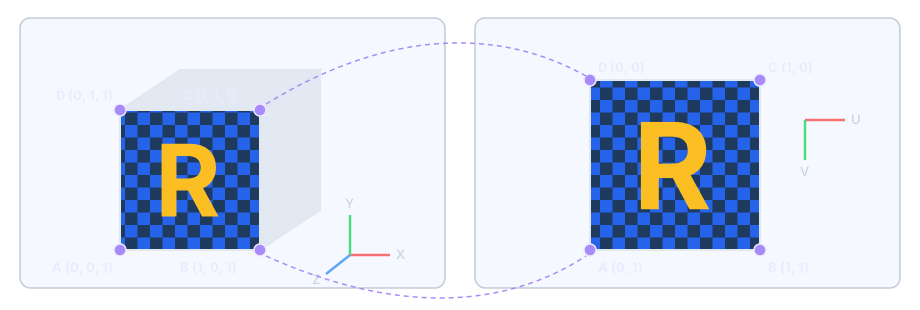
Each vertex carries both sets at once. For the vertices A, B, C and D on the cube’s front face, XYZ gives their position in space and UV says which corner of the image each one takes. When the GPU draws the face, every pixel inside it interpolates its own UV from the three vertices of its triangle and reads the colour there, so the whole image ends up “stuck” onto the face.
How XYZ and UV relate
| XYZ | UV | |
|---|---|---|
| What it describes | Where the vertex is in 3D space | Where the vertex falls on the texture image |
| Dimensions | 3 | 2 |
| Range | World units, any size | Relative to the whole image, usually 0–1; outside that, the addressing mode decides |
| What changes it | Moving, rotating or scaling the model; skeletal animation | UV unwrapping when the model is made; UV animation at run time |
| What you see when it changes | The model moves or deforms | The model stays still and the surface pattern moves |
| How rendering uses it | Goes through the model → world → camera → screen transforms to decide where it is drawn | Skips those transforms and is only interpolated, to read colours from the texture |
Both sets live in the same vertex but do not affect each other. When a character walks, turns or swings a weapon, XYZ changes every frame while UV stays the same, so the pattern on their clothes stays in place. Change only UV and the model does not move at all, yet the pattern on its surface does.
From model to screen: the coordinate spaces
There is more than one XYZ. On its way from the model file to the screen a vertex passes through several coordinate spaces in turn; UV takes a separate path and only meets them at the screen pixel.
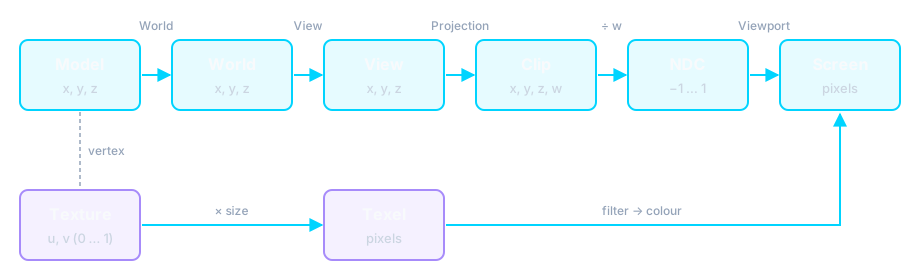
| Space | Origin and range | Role |
|---|---|---|
| Model space (local) | The model’s own centre, units chosen when modelling | The vertex XYZ stored in the model file |
| World space | The origin of the whole scene | The world matrix places the model in the map: position, facing, size |
| View space (camera) | The camera’s position, axes following the camera | The view matrix rewrites everything as seen from the camera |
| Clip space | Four values x, y, z, w | The projection matrix adds perspective; anything off screen is clipped here |
| Normalised device coordinates (NDC) | x and y from −1 to 1; z from 0 to 1 in Direct3D | Dividing by w; this is where distant things get smaller. z is used for the depth test |
| Screen space | Window pixels, origin at the top left | The viewport transform decides which pixel it lands on |
| Texture space (UV) | 0 to 1, relative to the whole image | The texture coordinates stored on the vertex |
| Texels | 0 to the image width / height | UV times the image size: where the colour is actually read |
Every step on the top row is a matrix multiply or a division, recomputed whenever the model moves; the UV row never goes through those matrices. The two paths meet at the screen pixel: once rasterisation knows which triangle a pixel belongs to, it interpolates that pixel’s UV from the three vertices and reads the colour from the texture. The interpolation has to be perspective-corrected with w, or textures on slanted surfaces bend; the texture wobble in early PS1 games came from skipping this step.
What UV is compared with, and what it converts to and from
UV’s most direct counterpart is model-space XYZ: both are stored on the vertex and fixed when the model is made, one describing the shape and the other how the texture wraps around it. World, view and projection coordinates are all computed from XYZ through matrices, and UV takes no part in that chain. The conversions it does take part in are these:
| Conversion | Direction | How | Used for |
|---|---|---|---|
| Model surface ↔ UV | Both ways, triangle by triangle | UV unwrapping fixes the vertices; inside a triangle barycentric coordinates interpolate, and in reverse a UV finds its point on the surface | Modelling, baking light maps |
| UV ↔ texels | Both ways | x = u × width, y = v × height; in reverse u = x ÷ width | Sampling, making and replacing textures |
| Screen pixel → UV | One way | Rasterisation interpolates (perspective-corrected); the UV difference between neighbouring pixels picks the mipmap level and the AF direction | Shading every pixel |
| UV → UV | One way | Texture transform: add an offset (scrolling), scale (number of repeats), rotate | UV animation |
| NDC ↔ screen UV | Both ways | u = (x + 1) ÷ 2, v = (1 − y) ÷ 2 (Direct3D) | Post-processing reads the whole frame as a texture: AO, SMAA, blur |
| UV → tangent space | One way | The directions in which U and V grow on the surface become the tangent and bitangent; with the normal they form a local frame | Normal maps |
Where UV comes from: UV unwrapping
UV is set when the model is made. The artist cuts the model’s surface open along seams and flattens it onto the image; this is UV unwrapping, much like unfolding a cardboard box flat before printing on it. The layout decides which part of the image lands on which face.
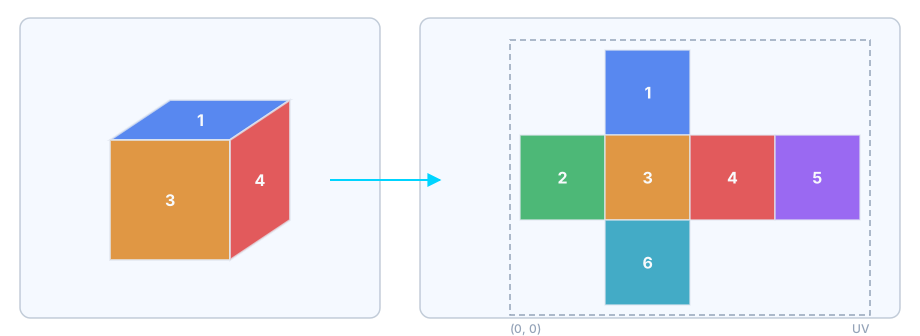
The two sides of a seam are often far apart on the image, so a poor unwrap shows broken patterns or colour jumps along seams. Several faces can also point their UV at the same area of the image and share one pattern, which saves texture space.
UV and texture pixels
UV is a fraction of the whole image, not a pixel number. To find the actual pixel (texel), multiply UV by the image size:
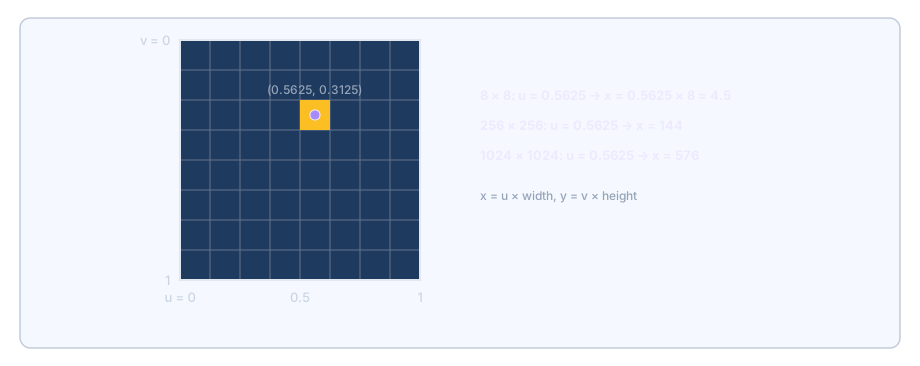
So one set of UV works at any resolution: swap a 256×256 texture for a 1024×1024 one and u = 0.5625 still lands in the same place, only with finer pixels there. When UV falls between pixels, texture filtering (bilinear, trilinear and the AF above) decides how nearby pixels are blended.
Beyond 0–1: addressing modes
UV is not limited to 0–1. What is read outside that range depends on the texture’s address mode. The figure shows four common modes for UV from 0 to 2:
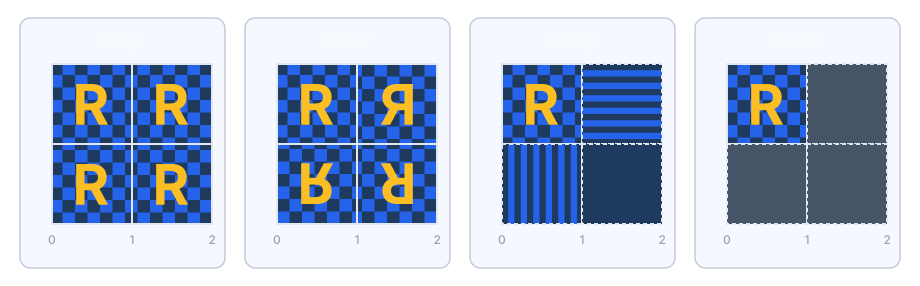
- Wrap (repeat): only the fractional part counts, so 1.25 is 0.25. Large repeating surfaces such as floors, walls and grass use it, letting one small image cover a whole area.
- Mirror: flips at every whole number, so seams are symmetric; useful when the repetition should be less obvious.
- Clamp: everything outside takes the outermost ring of pixels, stretching the edge. Used for images that must not repeat, such as interface elements or single decals.
- Border: everything outside is filled with one fixed colour.
UV scrolling
Changing only UV and never XYZ makes a pattern flow across a still model: add a small offset to U or V every frame.
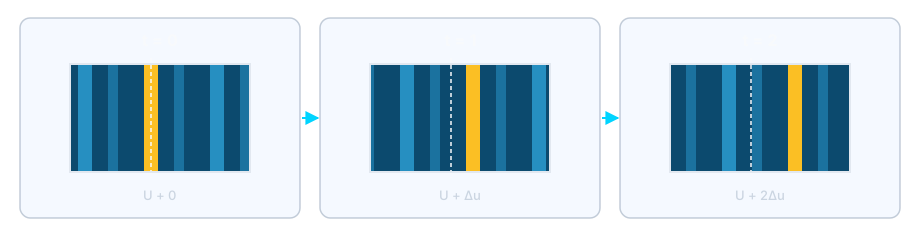
With Wrap addressing, the pattern does not break when the offset passes 1 and loops seamlessly. Flowing water, waterfalls, lava, light bands sliding across screens and the energy patterns on transporters are usually made this way: the model itself does not move, so the effect costs almost nothing in geometry.
What this means for texture replacements
UV is stored in the model; the image is only what gets sampled. So when replacing textures (an HD texture pack, for example):
- Resolution can go up freely. UV is a fraction, so going from 256 to 1024 keeps every position and only adds detail.
- The layout must match the original. The model’s UV has not changed, so moving any part of the image puts it in the wrong place: a face on the back, misaligned text, stray colours along seams.
- Keep the aspect ratio. UV reads the image proportionally, so changing the aspect ratio stretches the pattern.
- Leave a margin at the edges. Higher-resolution textures show neighbouring areas along UV seams more easily; the usual fix is to extend each area a few pixels past its edge.
FAQ
- Why is a texture stretched or warped?
- Usually one face was squashed on the image during UV unwrapping, or a replacement texture changed the aspect ratio. It is not a graphics card or backend problem, and switching backends will not change it.
- Why do distant floor patterns shimmer?
- One screen pixel covers too many texture pixels in UV space. This is about mipmaps and AF; see anisotropic filtering above.
- Why is UV sometimes called ST?
- Just a different name: OpenGL tends to use S and T for texture coordinates, meaning the same as U and V. Also, in Direct3D UV (0, 0) is the top-left of the image and V grows downward; in OpenGL the origin is the bottom left and V grows upward.
dgVoodoo Model (swap chain mode)
This setting only concerns the dgVoodoo path. It controls the DXGI swap chain’s Present model, i.e. how the finished back buffer is handed to the Windows desktop compositor or the display. It affects latency, window compatibility, Alt-Tab and capture, and doesn’t change the scene’s sampling quality.
Important limitation: these modes are mainly for D3D11 output. According to dgVoodoo’s official notes, D3D12 output must use Flip Discard; even if the launcher still offers other choices, D3D12 can’t fall back to the traditional BitBlt swap chain.
- Auto — chosen automatically by dgVoodoo based on the backend and window mode; the default recommendation.
- Discard — the traditional BitBlt model, which discards the old frame when showing a new one. Best compatibility on Win 7 / old drivers, but can’t use Win10+ DWM optimizations.
- Sequential — the traditional BitBlt model, but keeping previous frames. Rarely used.
- Flip Discard — the modern Flip model + discarded buffer contents. Cuts unnecessary desktop copies and allows modern presentation optimizations; actual latency still depends on V-Sync, window mode, the driver queue and DWM scheduling.
- Flip Sequential — the Flip model, but keeping old frames. Slightly more overhead than Flip Discard.
Recommendation:
- For D3D11, Auto is fine in most cases; test the others one by one only if capture, Alt-Tab or window composition misbehaves
- If screen recorders can’t capture D3D11 after switching to Flip, change back to Discard
- If D3D12 has presentation or capture problems, changing Model usually won’t help; switch to D3D11 + Auto/Discard
Where visual effects sit in the pipeline
Below is a conceptual data-dependency diagram to show what each setting works on; it isn’t an exact step-by-step execution order in Ephinea’s source. The key difference: MSAA/SSAA/HSAA change how the scene is sampled, while SSAO, Bloom, DoF, Cel Shading, Tonemapping and SMAA all read an image or depth information that already exists.
Quick guide for ordinary players
| Effect | Most visible change | Main cost / side effects | One-line advice |
|---|---|---|---|
| SSAO | More contact shadow in corners, under feet and at object seams | Edge halos, noise; heavier on the GPU at higher resolutions | Medium if you like depth; off if you prefer the original |
| Bloom | Soft glow around bright effects | Overexposure, greyish look, blurred detail | To taste; don’t treat it as HDR |
| Depth of Field | Out-of-focus areas blur for a camera-like look | Harder to make out distant things; transparent objects/HUD edges may glitch | Off if combat clarity comes first |
| Cel Shading | Stronger outlines, a more anime-like image | Fine detail edges may be misread or outlined too heavily | Purely aesthetic |
| Tonemapping | Changes brightness, contrast and colour response | Crushed shadows or lost highlights | Turn it on alone first, and add Bloom once the colours suit you |
| Motion Blur | Trails on movement and camera changes | Lower motion clarity, may cause motion sickness | Most players can turn it off |
Ambient occlusion
SSAO (Screen-Space Ambient Occlusion) is a screen-space approximation of contact occlusion. It reconstructs the spatial relationship of nearby surfaces from the current frame’s depth buffer (implementations may also use normals), and adds low-frequency darkening where light struggles to reach, such as corners, object seams and under characters’ feet.
It isn’t dynamic shadows or global illumination. Real shadows need to know the relationship between the light, the occluder and the surface being shadowed; SSAO only knows the limited depth information the camera currently sees, so it can only give the visual cue that objects feel more grounded and solid.
- Disabled — off. Closest to the original look, best performance.
- Low — suits low resolutions or limited hardware; sampling noise, banding or edge changes may be more visible.
- Medium — a good balance of contact feel and cost; a sensible starting point for ordinary players.
- High — higher sampling/processing quality; shadows are usually steadier and finer, but cost rises sharply with output resolution.
Limits advanced players should know
- Screen-edge leaks: when the sample area goes off screen there’s no scene data, so occlusion may suddenly fade or vanish.
- Incomplete occlusion information: objects off camera or completely hidden behind the foreground aren’t in the current depth buffer and can’t contribute correct occlusion.
- Halos at depth discontinuities: large depth jumps where foreground meets background can form unnatural dark or light edges.
- Transparency and particles: transparent objects, effects and the HUD often don’t write depth like ordinary solids, so they may be left out or wrongly covered.
- Relation to AA: SSAO/DoF need to read or resolve multisampled depth/colour buffers correctly. Ephinea’s 2022-09-06 update specifically fixed their combination with MSAA/HSAA, so if an old client has problems, update fully first.
Recommendation: Start with Medium Watch characters’ feet, corners and screen edges; move up to High if there are no halos, noise or frame drops. Choose Disabled.
Extra (additional features)
These are experience switches Ephinea adds on top of the original, quality-of-life toggles unrelated to visual quality; green = on, grey = off.
- FAST STARTUP — skips the SEGA / Sonic Team / SOFTDEC logo animations at startup and goes straight to the login screen.
- CLEAN CAPTURE — makes the game’s built-in screenshots read a “clean” image from the scene render target, so later overlays such as Lua Addons aren’t included. It isn’t a switch for better recording quality; whether third-party recorders can capture still depends on the backend and swap chain.
- MOTION BLUR — motion blur. Blends samples along the direction of motion or accumulates neighbouring frames to imitate motion trails during a shutter exposure. It makes low-frame-rate motion look more continuous, at the cost of detail and text legibility while moving; at PSOBB’s fixed 30 FPS the trails are especially noticeable, so turn it off if you value motion clarity or are prone to motion sickness.
- RARE DROP SFX — rare drop sound. Plays an extra sound when a rare item drops, so you’re less likely to miss it while farming.
- BANK SHORTCUTS — bank shortcut keys. When on, you can store/take items and turn pages quickly with the keyboard in the bank, a big efficiency gain.
- LARGE BANK WINDOW — larger bank window. Shows more items at once and cuts down on page turning.
Screenshot compatibility: Ephinea’s developers state clearly that Clean Capture won’t include Addons, and D3D12’s built-in screenshots can’t capture Addons either. If you must capture add-on UI too, try D3D8/9 with Clean Capture off first, or a compatible Flip presentation mode under D3D11; you can also just use the system’s or OBS’s window capture.
Shaders
These are screen-space post-processing effects based on the final colour, depth or edge information; green = on, grey = off. They add no model or texture detail but reinterpret pixels that were already rendered. Stacking several effects stacks their costs and artefacts too, and the final look also depends on the order they run in.
- BLOOM — bloom. A typical implementation extracts brighter pixels, blurs a lower-resolution brightness image several times and adds it back to the original. It imitates the feeling of strong light spreading in a lens or the eye and creates no new lighting. Too strong, and white HUD elements, technique effects and bright textures bleed into each other, looking overexposed or hazy.
- DEPTH OF FIELD — depth of field. Estimates each pixel’s distance from the focal plane from the depth buffer (the Circle of Confusion) and blurs out-of-focus areas. PSOBB’s transparent effects, character names and HUD don’t necessarily have depth consistent with solid geometry, so edges may get halos, the foreground may pick up background colour, or text may blur.
- CEL SHADING — cel shading. Strengthens outlines with brightness/depth/normal edge detection and may compress continuous shading, pushing forms towards a cel-animation look. It’s screen-space stylization, not a remake of character materials; small textures and high-contrast HUD elements may also be treated as outlines.
- TONEMAPPING — tone mapping. Uses a non-linear curve to remap internal brightness to the display range, changing shadow compression, highlight roll-off, contrast and saturation. PSOBB isn’t a modern HDR renderer, so here it’s better understood as reshaping display tone and colour response, not generating HDR dynamic range out of nothing.
Stacking effects and troubleshooting
- One at a time: pick a stable backend and AA first, then turn on one shader at a time. Only then can you tell which one causes crashes, blurring, frame drops or colour problems.
- Bloom + Tonemapping:If tone mapping lifts highlights or contrast, it changes the bright areas Bloom extracts; the combined result isn’t simply the sum of the two effects.
- DoF / SSAO + MSAA:Both depend on depth resolve. Keep the client updated; if outline halos appear, lower AO and turn off DoF first, then change AA.
- Several full-screen passes: post-processing usually runs per output pixel, and 4K has 4 times the pixels of 1080p. One cheap effect doesn’t mean several together are still cheap.
- Vulkan / Wine:Shader compilation, depth formats and injected overlays make combinations more complex. If you hit crashes, turn all shaders off first, and bring them back once the backend is confirmed stable.
Original look and clarity first: all four off.Light modernization: turn on Tonemapping alone first, then add Bloom to taste.Anime style: turn on Cel Shading alone and check whether the outlines are clean.Screenshot atmosphere: try DoF + Bloom, but they aren’t recommended long-term when you need to spot enemies and drops at a distance.
How to choose
There’s no “absolute best” option; here are common ways to choose:
Rendering backend
| Situation | Recommended |
|---|---|
| Don’t know what to pick / first time playing | Direct3D 11 (2.87.1) |
| D3D11 works fine | Leave it; switching to D3D12 won’t raise base quality |
| AMD: D3D11 shows texture errors such as solid-colour polygons | Try Direct3D 12 (2.87.1); turn off Radeon Anti-Lag if it crashes |
| NVIDIA: D3D11 misbehaves | Try D3D11 2.79.3, D3D9 or Vulkan first; don’t make dgVoodoo D3D12 your first choice |
| D3D12 freezes / GPU hangs / overlay conflicts | Go back to Direct3D 11, and try 2.79.3 if needed |
| Both D3D11 and D3D12 misbehave | Try Direct3D 9; use Vulkan as a cross-check on a different driver path |
| Device Lost after UAC, lock screen or Alt-Tab | Prefer D3D11 2.87.1; don’t use D3D9On12 instead |
| Just want to check the original game starts | D3D8 + None AA + shaders off |
| Recording / streaming can’t capture the image | D3D11 + Auto/Discard, and try window capture |
An easy setup (modern graphics card + balanced quality)
- Rendering backend: Direct3D 11 (2.87.1) (D3D12 won’t add quality)
- Anti-aliasing: SMAA Ultra or MSAA 2x + SMAA
- dgVoodoo Model: Auto
- Ambient occlusion: High
- Extra: all on (turn off MOTION BLUR unless you want the original feel)
- Shaders: BLOOM + TONEMAPPING, the rest to taste
A conservative setup (old hardware / compatibility first)
- Rendering backend: Direct3D 11 (2.79.3) or Direct3D 9
- Anti-aliasing: SMAA Medium
- dgVoodoo Model: Auto (if you get a black screen, switch to Discard)
- Ambient occlusion: Low or Disabled
- Shaders: all off
FAQ
Q: The game shows a black screen or crashes after switching. What now?
A: Reopen the launcher and switch back to a conservative option such as Direct3D 9 or Direct3D 11 (2.79.3) . Settings only affect rendering and won’t damage character data.
Q: Why are there two sets of version numbers (2.79.3 / 2.87.1)?
A: Different dgVoodoo / DXVK versions have different fixes and regressions. The older one is kept as a fallback and the newer one is for trying out. If you hit a bug in the newer version, you can switch back to the older one for now.
Q: I changed options but the frame rate didn’t change?
A: PSOBB’s native frame rate cap is 30 FPS, and the translation layer can’t break the game’s internal frame lock. Switching backends is mainly for stability and Compatibility, not higher frame rates.
Q: It still crashes, and it’s not about rendering?
A: See About crashes and check system-level settings such as DEP, compatibility, UAC and antivirus exclusions.
Q: Why doesn’t anti-aliasing take effect / make any difference?
A: Advanced AA is implemented by the Ephinea client in the render target and post-processing stages, not provided automatically by dgVoodoo / DXVK. The full advanced options are available from D3D9 up; D3D8 isn’t suited as an advanced AA path. MSAA only handles geometric coverage edges, so texture interiors still shimmer; try SSAA to improve that, or SMAA if you just want cheap smoothing.
Q: D3D9on12 already uses D3D12, so why pick D3D12?
A: D3D9on12 is Microsoft’s system compatibility layer that maps D3D9 commands onto D3D12, keeping the D3D9 device model on top; the launcher’s D3D12 has dgVoodoo take over D3D9 emulation, resource management and Flip presentation. They only share the final driver API; the translators and compatibility behaviour are completely different. To avoid traditional Device Lost, prefer dgVoodoo D3D11; consider D3D12 only when there are specific D3D11 texture glitches on AMD.
Q: Can D3D12 be thought of as Microsoft’s Vulkan?
A: As an introductory analogy, yes: both are modern low-level APIs that explicitly manage commands, resource state, descriptors, pipelines and synchronization. But they aren’t the same API or wrappers of each other; D3D12 belongs to the Windows/Xbox ecosystem and Vulkan is a cross-platform standard. For PSOBB it’s more accurate to say dgVoodoo translates D3D9 to D3D12 and DXVK translates the same kind of workload to Vulkan.
Q: The image got blurry / the colours changed after turning on Shaders?
A: That’s the nature of post-processing, not a bug. The most common culprits are BLOOM (blur) and TONEMAPPING (deeper, more saturated colours). Turn them off one by one to find the one you don’t like.
Q: How are CLEAN CAPTURE and dgVoodoo Model = Discard related?
A: Both relate to whether recording / streaming can capture the image properly. Turn on CLEAN CAPTURE first; if OBS still can’t capture under D3D11, switch Model from a Flip type back to Discard. D3D12 always uses Flip Discard, so switch to D3D11 before testing Model.
The search interface could not download. Reload this page to try again.